PANTHEON™ Help

 Toc
 PANTHEON Help - Welcome
[Collapse]PANTHEON
 [Collapse]Guides for PANTHEON
  [Collapse]Guide for PANTHEON
   [Collapse]Settings
    [Expand]Subjects
    [Expand]Items
    [Expand]POS
    [Expand]Manufacturing
    [Expand]Personnel
     Calendar
    [Expand]Financials
    [Expand]Customs
    [Collapse]Program
     [Expand]Document Types
     [Collapse]Reports in PANTHEON
       Settings in Administration Panel
      [Expand]Reports Register
       Print Preview
      [Collapse]Report Designer
        Control Keys
        Mouse Control
        Object Inspector
        Data Tree
       [Expand]Toolbars
        Designer Options
        Report Settings
        Page Options
      [Expand]Creating Reports
      [Expand]Groups and Aggregates
      [Expand]Formatting and Highlighting
       Nested Reports (Subreports)
      [Expand]Specifics of Printouts in PANTHEON
      [Expand]Script
       Report Design Considerations
      Document Texts
      Delivery Methods
     [Expand]Loyalty Cards
     [Expand]Administration Panel
     [Expand]Dashboard Components
      Dashboard Reports
      Ad-hoc analysis
     [Expand]ARES
      SQL urejevalnik
    [Expand]Documentation
    [Expand]Change User
   [Expand]Orders
   [Expand]Goods
   [Expand]Manufacturing
   [Expand]POS
   [Expand]Service
   [Expand]Financials
   [Expand]Personnel
   [Expand]Analytics
   [Expand]Desktop
   [Expand]Help
   [Expand]Messages and Warnings
   [Expand]Additional programs
  [Expand]Guide for PANTHEON Retail
  [Expand]Guide for PANTHEON Vet
  [Expand]Guide for PANTHEON Farming
 [Collapse]User Manuals for PANTHEON
  [Expand]User Manual for PANTHEON
  [Expand]User Manual for PANTHEON Retail
  [Expand]User manual for PANTHEON Vet
  [Expand]User Manual for PANTHEON Farming
[Collapse]PANTHEON Web
 [Collapse]Guides for PANTHEON Web
  [Expand]Guide for PANTHEON Web Light
  [Expand]Guide for PANTHEON Web Terminal
  [Expand]Guide for PANTHEON Web Legal
 [Collapse]User Manuals for PANTHEON Web
  [Expand]Getting started PANTHEON Web
  [Expand]User Manual for PANTHEON Web Light
  [Expand]User Manual for PANTHEON Web Terminal
  [Expand]User Manual for PANTHEON Web Legal
[Collapse]PANTHEON Granules
 [Collapse]Guides for PANTHEON Granules
  [Expand]Personnel Granule
  [Expand]Travel Orders Granule
  [Expand]Documents and Tasks Granule
  [Expand]Dashboard Granule
  [Expand]B2B Orders Granule
  [Expand]Field Service Granule
  [Expand]Fixed Assets Inventory Granule
  [Expand]Warehouse Inventory Granule
 [Collapse]User Manuals for PANTHEON Granules
  [Expand]Getting started
  [Expand]Personnel Granule
  [Expand]Travel Orders Granule
  [Expand]Documents and Tasks Granule
  [Expand]B2B Orders Granule
  [Expand]Dashboard Granule
  [Expand]Field Service Granule
  [Expand]Fixed Assets Inventory Granule
  [Expand]Warehouse Inventory Granule
[Expand]User Site

Load Time: 859.3969 ms
"
  1006244 | 218607 | 354768 | Published
Label

Page options

Page Options

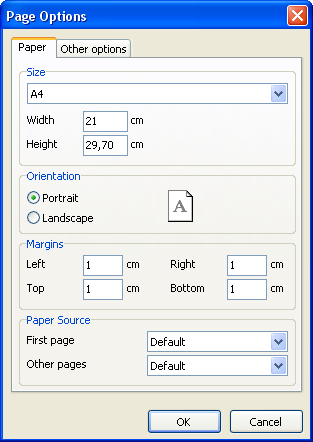
The “Page Options” dialogue is available either from the “File>Page settings...” menu or by double-clicking on blank space on the page. The dialogue has two tabs:
clip0065

On the first dialogue tab, you can set the size and alignment of the paper as well as the margins. In “Paper source” the drop-down lists allow selection of printer tray for the first page and for the rest of the report pages.
clip0066

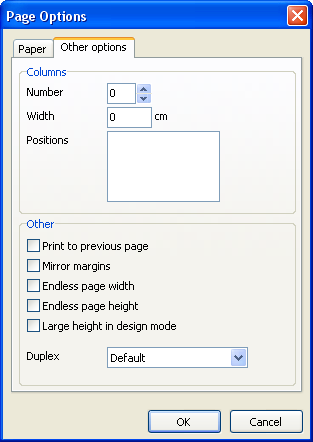
On the second dialogue tab, you can set the number of columns for multi-column reports. The current settings are also displayed in the designer.

The “Print to previous page” flag allows you to print pages without starting a new page, instead beginning in any blank space on the previous page. This option can be useful when a report template consists of several pages or when printing batch (composite) reports.

The “Mirror margins” option switches the right and left margins of even-numbered pages during previewing or printing of a report.

The “Endless page width & height” options increase page sizes depending on the number of data records on the page (when the report is run). When set the report will appear on one big page in the preview window instead of on several standard size pages.

The “Large height in design mode” option increases the page height in the designer. This feature can be useful if there are many bands on a page: it must be used when working with overlayed bands. It only effects the page height in design mode.


Rate this topic
Was this topic usefull?
Comments
Comment will also bo visible in forum!